Image Object
An image object is a set of pixels. The set of pixels of an image object  is denoted as
  .
.
Image Object Size
At a basic level, the size of an image object is measured by the number of pixels in image object  . The number of pixels is denoted by
  , the cardinality of the respective pixel set.
Bounding Box of an Image Object
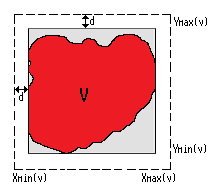
The bounding box of an image object  is the most common form of measurement of the extent of an image in a scene. It is the smallest rectangular area that encloses all pixels of
  along x- and y-axes. The bounding box is therefore defined by the minimum and maximum values of the x and y coordinates of an image object
 :
: ,
,  and
and  ,
,  .
.
The extended bounding box  is created by enlarging the bounding box with the same number of pixels in all directions.

Pixel Neighborhood and Connectivity of Image Objects
Two pixels are considered to be spatially connected if they neighbor each other in the pixel raster. On 2D raster images, the neighborhood between pixels can be defined as a 4- or 8-neighborhood:
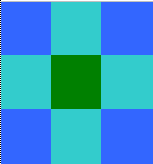
With reference to the green pixel, the light-blue pixels are the 4-neighborhood. In combination with the dark blue pixels, they form the 8- or diagonal neighborhood of the green pixel. eCognition software uses the 4-neighborhood for all spatial neighborhood calculations. As it assumes Image objects to be a set of spatially connected pixels, an image object is defined as connected if it is connected according to the 4-neighborhood principle.
Neighborhood Relations Between Image Objects
Two image objects are considered neighbors if they contain pixels that neighbor each other according to the 4-neighborhood principle. In other words, two image objects  and
and  are considered neighboring each other if this is at least one pixel
  and one pixel
 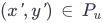 so that
  is part of
  . The set of all image objects neighboring
  is denoted by
  :
:

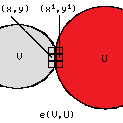
The entire border line between  and
and  is called the neighborhood relation and is represented as:
The neighborhood relations between image objects are automatically determined and maintained by the eCognition software.
Border of an Image Object
The border length  of a two-dimensional image object
  is calculated by the number of the elementary pixel borders.
Similarly, the border length  of the neighborhood relation between two image objects
  and
and  is calculated from the common borders of image objects. Image objects are basically pixel sets. The number of pixels belonging to an image object
  and its pixel set
  is denoted by
  .
.
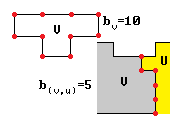
 or between two objects
Inner Border
The set of all pixels in  belonging to the inner border pixels of an image object
  is defined by
  with
with 
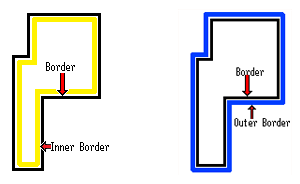
Outer Border
The set of all pixels in  belonging to the outer border pixels of an image object
  is defined by
  with
with 
Tracking Image Objects Through Time
There is no special image object type to represent the movement of an image object in time. Instead, image object links are used to track identical image objects at different points in time (a video or time series).
Disconnected Image Objects
In addition to normal 2D image objects, eCognition Developer allows you to work with image objects that are spatially disconnected. While a connected image object covers one contiguous region of a scene, a disconnected image object can consist of arbitrary pixels in two or more potentially disconnected parts within a scene.
It is important to know that image objects can be defined as disconnected even though they are not disconnected in reality. An image object is defined as disconnected if it lacks information about its spatial connectivity. The major motivation for this lack of information is the high calculation effort that is necessary to ensure spatial connectivity. If, for example, you remove some pixels from an image object, it may divide into several parts. To connect the resulting image objects, a special algorithm needs to analyze the remaining objects and separate them properly into several sub-image objects. If the resulting image objects remain disconnected, they can be simply marked as there is no need for an analysis. Disconnected image objects are therefore useful for fast object processing when spatial information is not relevant. If you use threshold segmentation, for example, to separate an image into two disconnected image objects, you can save a lot of computing time and memory since the number of image objects is considerably reduced.
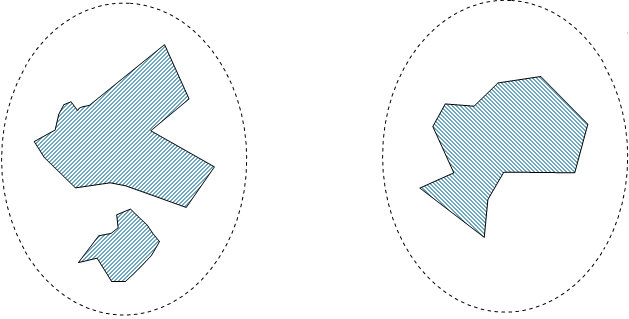
The main purpose of working with disconnected image objects is the representation of simple “pixel crowds”, where several properties that can be measured for normal image objects might not make sense or are meaningless. You should therefore note that the following information is not available for disconnected image objects:
- Neighborhood relations and all features based on these relations
- Shape features
- Polygons.
Image Object Hierarchy
Image objects are organized into levels, where each object on each level creates a partition of the scene  . This can be described using the following fundamental conditions. The totality of all image objects covers the entire scene:
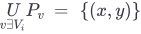
There are no image objects that overlap (having a non-empty intersection):
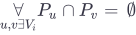
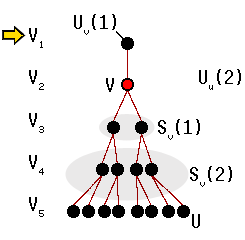
The image object levels are hierarchically structured. This means that all image objects on a lower level are complete contained in exactly one image object of a higher level.

Level Distance
The level distance represents the hierarchical distance between image objects on different levels in the image object hierarchy. Starting from the current image object level, the level distance indicates the hierarchical distance of image object levels containing the respective image objects (sub-objects or superobjects).
Since each object has exactly 1 or 0 superobjects on the higher level, the superobject of  with a level distance
  can be denoted as
  . Similarly, all sub-objects with a level distance
  are denoted as
  .
.
Spatial Distance
The spatial distance represents the distance between image objects on the same level in the image object hierarchy. If you want to analyze neighborhood relations between image objects on the same image object level in the image object hierarchy, the feature distance expresses the spatial distance (in pixels) between the objects.
The default value is 0 (in other words, only neighbors that have a mutual border are considered). The set of all neighbors within a distance  are denoted by
  .
.
Distance Measurements
Distance parameter in object features
Many features enable you to enter a spatial distance parameter. Distances are usually measured in pixel units. Because exact distance measurements between image objects are very processor-intensive, eCognition software uses approximation approaches to estimate the distance between image objects. There are two different approaches: the center of gravity and the smallest enclosing rectangle. You can configure the default distance calculations.
Center of Gravity - Centroids
The Center of Gravity approximation measures the distance between the center of gravity between two image objects. This measure can be computed very efficiently but it can be inaccurate for large image objects.
Smallest Enclosing Rectangle
The smallest enclosing rectangle approximation tries to correct the center of gravity approximation by using rectangular approximations of the image object to adjust the basic measurement delivered by the center of gravity.
We recommend using the center of gravity distance for most applications although the smallest enclosing rectangle may give more accurate results. A good strategy for exact distance measurements is to use center of gravity and try to avoid large image objects, for example, by creating border objects. To avoid performance problems, restrict the total number of objects involved in distance calculations to a small number.
How to select the Distance measurement mode
You can select the default distance calculations for features individually.
Example: create a new feature, e.g. Feature view > Object features > Position > Distance > Create new 'Distance to vectors' > Distance between > Centroids / Outlines.
Alternatively, you can edit the distance calculation within a project in the algorithm parameters of the Set Rule Set Options algorithm and set the Distance Calculation option to your preferred value.
Example: in Process Tree > Add New Process > set rule set options > Algorithm parameter > Distance calculation > Smallest Enclosing Rectangle / Center of Gravity.
In eCognition > Tools > Options > Project Settings > Distance calculation you can check the current setting for distance calculcations.
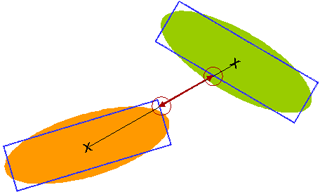
Note that in addition to the distance parameter in object features, eCognition also offers distance features. For object feature > position > distance to vector and vector features > position > distance to vector you again have the option to calculate distances based on center of gravity (= centroid). In addition, you can opt for an accurate calculation of the distance between the outlines. A rectangle approximation is not used.